 Colour Cozy
Is there a color by number app where you actually color?
Most number apps fill a whole cell with one tap. If you miss the feeling of moving a pen, here is what to look for and which kinds of apps get closer.
In this guide
Yes. Most color by number apps fill a whole numbered cell with a single tap, but some let you move your finger to color. April (Oil Painting by Number) says in its store listing that you "color with swipes, not taps", and coloring apps with a free mode let you paint stroke by stroke with markers, crayons or spray. Before you commit to any app, open one picture and check whether dragging your finger paints or just fills.
If you have searched for a color by number app that you actually color, you probably know the feeling. You open a beautiful picture, pick number 4, tap a cell, and the whole shape snaps to color. It is quick and tidy, but after a while it feels more like clearing a puzzle than coloring.
The good news: some coloring apps really do let you color with your finger. This guide compares the main styles and gives you a two-minute test to try before you get attached to an app.
Why most color by number apps feel like tapping
Classic number apps are built around one action: tap a cell, cell fills. That design has real upsides. It is fast, it never goes outside the lines, and it works well on a small phone screen with tiny cells. It is also why many of these apps add hints or a "find the next cell" button, because the hard part becomes hunting for the last tiny region, not coloring.
What you lose is the hand feeling: no stroke, no choice about where the color starts. If you grew up with crayons and felt-tips, that missing motion is what makes the app feel hollow after a while.
So when people say they want to "actually color", they usually mean one of three things:
- Moving their finger across the shape instead of a single tap.
- Seeing texture, like crayon grain or a marker edge, instead of a flat fill.
- Choosing how a shape gets colored, including going a little off the guide on purpose.
Three kinds of coloring apps, compared
Here is how the main styles compare. Store details change, so always check the app's own store page before you install anything.
| Style | How you color | Example |
|---|---|---|
| Tap-to-fill | One tap fills a whole numbered cell | Most color by number apps |
| Swipe to color | Swipe over the picture to paint it in | April (App Store listing) |
| Free mode | Fill, or paint stroke by stroke | Colour Cozy (coming soon) |
| Paper | Pens or pencils on a printed page | Printable sheets |
None of these is "right", but if you are reading this you probably want the middle two rows. Our color by number vs free coloring guide goes deeper into when each mode feels best.
The two-minute test: does this app make you color?
App screenshots and short videos often hide how coloring really works. Try this with any app you are curious about, ideally before you spend anything on it.
- Open the simplest picture you can find. Big shapes make it easy to see what happens.
- Pick one color and press and drag across a shape slowly, without lifting your finger. If the color follows your finger, you are painting. If the whole shape appears at once, it is tap-to-fill.
- Stop halfway. Lift your finger in the middle of a shape. In a painting app, half the shape stays colored. In a fill app, there is no "half".
- Look for a mode or tool switch. Search the toolbar for words like Free, Brush, Marker or Crayon. Some apps hide brush coloring behind a separate mode.
- Zoom in. Pinch to zoom on an edge. Texture, grain or a soft edge means a real brush. A perfectly flat block of color means a fill.
- Check the store listing. The description usually says it plainly: "swipe", "stroke", "brush" or "tap". Trust the developer's own words over ads.
If an app passes steps 2 and 3, you have found one where you actually color.
How Colour Cozy handles it
We make Colour Cozy, so here is how it works, kept to what the game really does. Every picture starts with tracing: you follow the outline with your finger to wake it up (there is a Skip button if you just want to color).
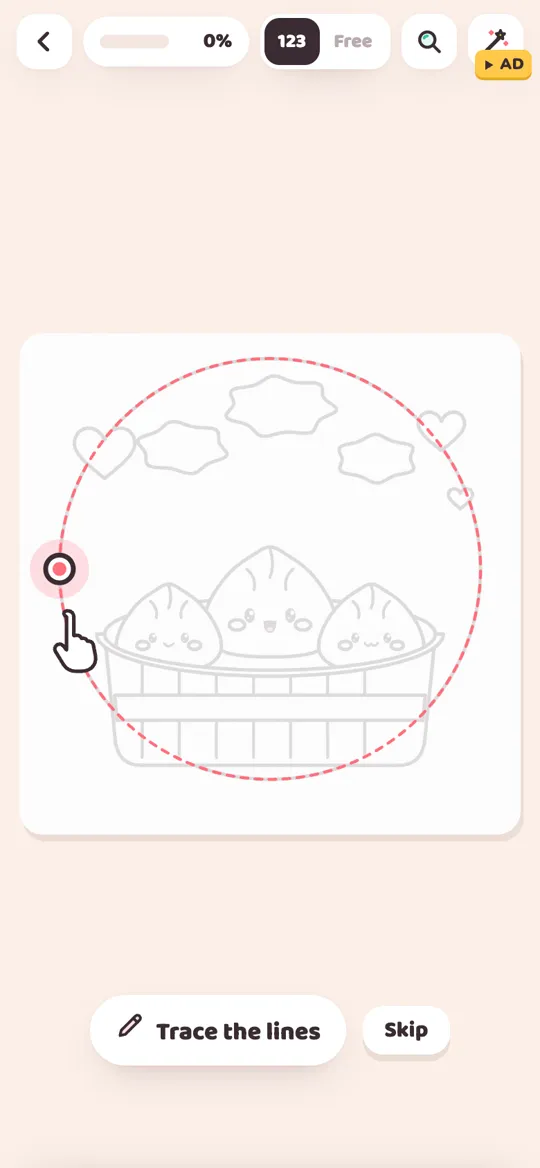
After that, a toggle at the top switches between 123 (color by number) and Free. Its store listing describes the choice like this: tap a number to pick its color, tap an area to fill it, or paint it stroke by stroke. So you can use the quick fill when you want, and slow down with a brush when you feel like it.
The tools are what make it feel like coloring rather than tapping:
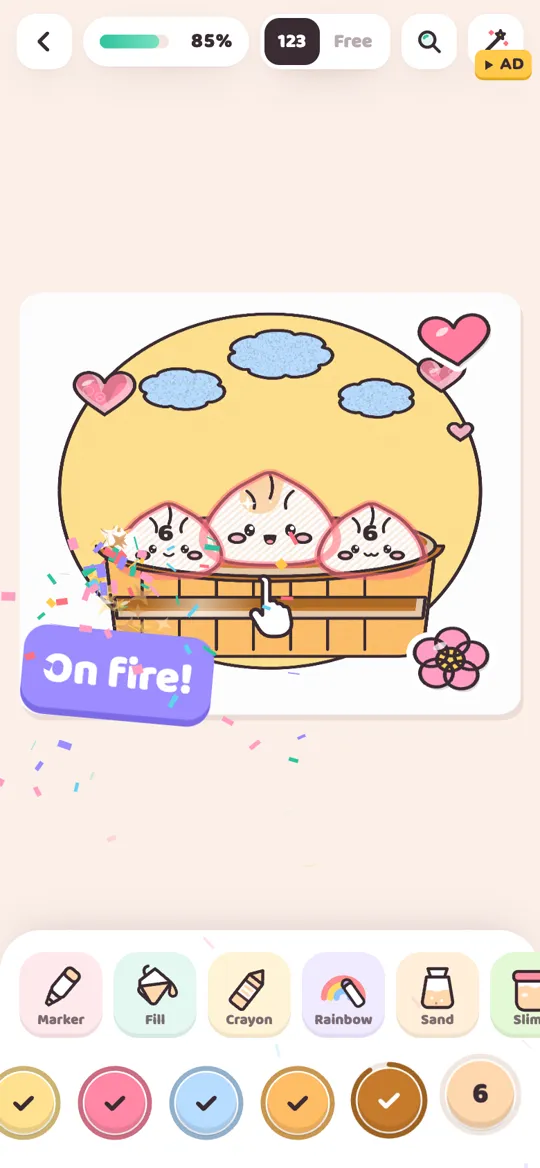
- Marker paints a clean line that follows your finger.
- Crayon has a paper grain, so strokes look hand-made.
- Rainbow shifts through colors as you paint, which a single fill cannot do.
- Spray puts down a soft mist you can build up in layers.
- Sand pours from your finger and piles up.
- Glitter, puffy paint and neon are pro tools that are painted stroke by stroke too.
Fill, ombre and slime are the one-tap tools, for when you want a quick, even area.
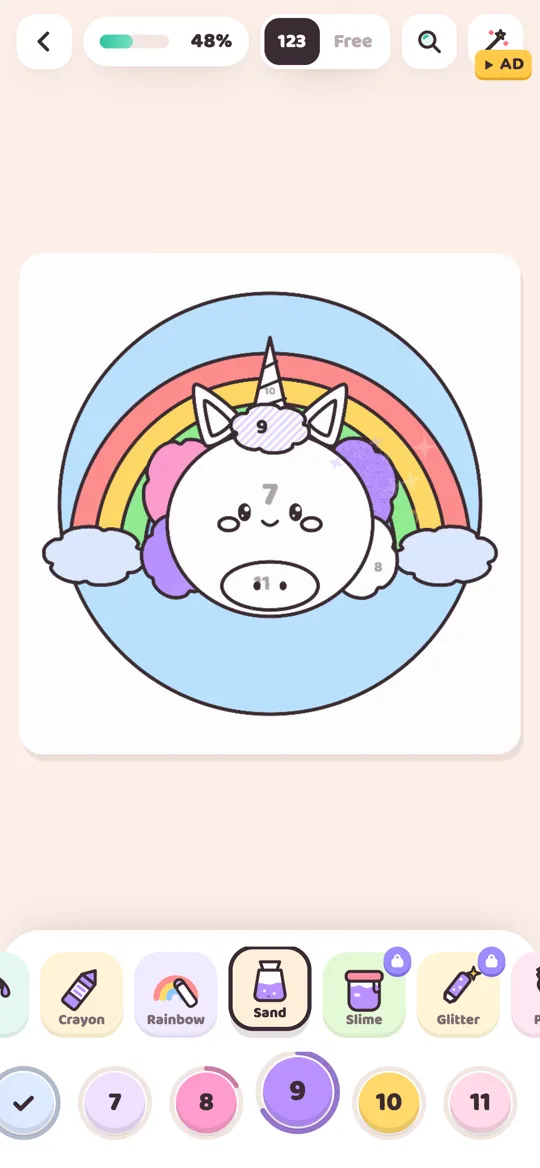
Our guide to all 12 tools walks through each one. In color by number, a gentle hint shows the right number if you pick a wrong color, and pinch zoom helps with tiny parts. There are no timers. When you finish, the picture comes alive and plays a timelapse of everything you colored, so you see your own strokes played back.
To be honest about the trade-offs: Colour Cozy is free with optional reward videos, an occasional full-screen ad after a finished picture (no banners), and optional in-app purchases. Some tools and color packs are unlocked by a video, with gems or by purchase. It is coming soon to Google Play, so for now you will need one of the other options above if you want to start today.
Tips to make any app feel more like real coloring
Even in a tap-to-fill app, a few habits bring back some of the hand feeling:
- Color in an order you choose. Start with the background or the biggest shape, the way you would on paper, instead of following the app's number order.
- Use a stylus. A cheap capacitive stylus makes swipe and brush apps feel much closer to a pen.
- Try a limited palette. Picking only four or five colors forces real choices. Our limited palette challenge has ideas.
- Mix in paper. If screens still feel flat, a printed sheet and real pencils are the original "actually color" option. Our digital vs paper coloring post compares the two honestly.
Who should pick which style
- Short breaks on a phone: tap-to-fill is hard to beat.
- You want guidance plus movement: a swipe-to-color number app.
- You want texture and freedom: an app with a free mode and brush tools.
- You want no screen at all: printable sheets and a pencil case.
If you are coming from one famous app in particular, our guide to apps like Happy Color compares the main kinds of alternatives.
If you are an adult choosing for yourself, our post on coloring games for adults lists more things worth checking, like ads, purchases and saving your work.
FAQ
Is there a color by number app where you actually color?
Yes. Some apps let you swipe or paint instead of tapping a cell. April's App Store listing says you color with swipes, not taps, and apps with a free mode, like Colour Cozy, let you paint stroke by stroke with tools such as marker and crayon.
What does "autofill" mean in a color by number app?
It usually means one tap fills a whole numbered cell at once. Some apps also have a hint or magic tool that fills or finds cells for you. If you want to color by hand, look for brush, swipe or free coloring in the listing.
Is color by number app free?
Many color by number apps are free to download and make money with ads, subscriptions or in-app purchases. Check each app's store page for what is included. Colour Cozy is free with optional videos and purchases, and it is coming soon to Google Play.
Can I switch between number and free coloring in Colour Cozy?
Yes. After tracing the picture, a 123 and Free toggle at the top of the screen lets you color by number or freely, and you can fill an area with a tap or paint it stroke by stroke.