 Colour Cozy
Slime, glitter, puffy paint and neon, explained
The four pro tools are the messy craft drawer of Colour Cozy, minus the mess. Here is how each one behaves, where it looks best and how to try them.
In this guide
Colour Cozy has four pro tools. Slime is a one-tap tool that oozes down into an area with drips, a glossy shine and little bubbles. Glitter, Puffy and Neon are painted stroke by stroke: glitter sparkles with tiny stars, puffy paint looks raised with a shadow and a highlight, and neon paints a dark night color with a glowing line in your chosen color. You can try each one free for a picture by watching an optional video, or unlock it for good with gems.
Real slime gets stuck in carpets. Real glitter turns up for weeks. Puffy paint needs a day to dry. They are some of the most satisfying craft supplies there are, and also the messiest.
Colour Cozy borrows the fun part of all four and leaves the cleanup behind. This guide looks closely at the glitter and slime coloring effects, plus puffy paint and neon: how each one moves, what it sounds like, and which parts of a picture it suits. If you want a quick tour of all 12 tools first, start with our Colour Cozy tools guide.
Where to find the pro tools
The tool row sits above the numbered color row at the bottom of the screen. Swipe it sideways and you will find Slime, Glitter, Puffy and Neon right after Sand. Until you unlock them, each one wears a small lock badge in its top corner.
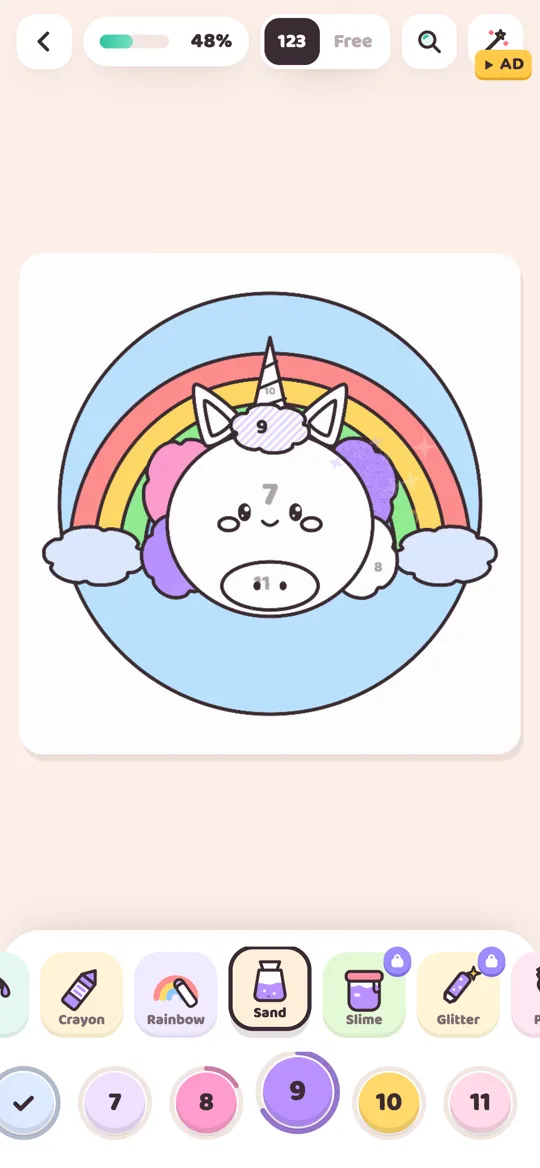
Here is how to try one:
- Tap a locked tool. A small card opens with the tool's name and a one-line description.
- Choose Try it free. Watch an optional video and the tool is yours for the picture you are coloring now.
- Or choose Unlock. Spend gems and the tool stays unlocked for every picture after that.
- Pick a color, then paint. The tool changes the texture, not the color, so it works in color by number and in free mode alike.
Trying a tool for one picture is a good way to find your favorite before you spend any gems. The daily gift calendar includes gems, and gems also unlock color packs, as our colour pack guide explains.
Slime: tap once and watch it ooze
Slime is the only pro tool you do not paint by hand. It works like the Fill tool: one tap colors the whole area.
What makes it different is how it arrives. Instead of spreading out from your finger, the slime pours down from the top of the area, with drips running ahead of it, until the shape is full. You hear a soft squish and a bloop as it lands. Once it settles, the area has a glossy look, a darker shadow along one side, a bright highlight and a few little bubble rings inside, like a jelly sweet held up to the light. Right after it finishes, the area also shows a wet shine for a moment, the same as fresh paint.
Where slime shines:
- Drinks: the tea in a boba cup, a milkshake, a mug of cocoa
- Sweets: jelly, cake filling, ice cream drips
- Anything squishy or bouncy, like a sleepy bunny's cheeks
Because one tap does the job, slime is also handy for medium-sized areas when you want texture without painting every corner. If food pictures are your thing, our food coloring page ideas pair nicely with it.
Glitter: sparkle in every stroke
Glitter is a stroke tool, so you rub your finger over the area. As you paint, tiny white and pale gold sparkles appear inside the stroke, and little star shapes pop out and float up from your finger with a soft tinkling sound.
The nice surprise comes when you finish an area. A few twinkles stay behind and keep sparkling on that part of the picture, so it still glints after you move on.
Where glitter shines:
- A unicorn horn, a crown or a magic wand
- Stars, snowflakes and sprinkles
- The frosting on a cake or the rim of a cup
Glitter is strongest in small doses. A whole picture in glitter can get busy, while one sparkling horn on a calm pastel unicorn really stands out. That is the same idea as our tip on making a picture pop with one accent color.
Puffy paint: raised paint you can almost touch
Puffy is also a stroke tool. Each stroke gets a slightly darker shadow on one side and a soft white highlight on the other, so the paint looks thick and raised, like the fabric paint you squeeze from a bottle. A finished puffy area gets the same brief wet shine as fresh paint.
Where puffy paint shines:
- Small, round shapes: hearts, buttons, spots and dots
- Cheeks and noses on cute characters
- Outlines of a shape you want to feel like a sticker
Puffy looks best on small areas, where the raised edge is easy to see. On a very big area the effect spreads out and becomes harder to notice.
Neon: a glowing sign on a dark page
Neon is the odd one out, and that is what makes it fun. When you paint with it, the area turns a deep night color, and your chosen color becomes a bright glowing line on top, with a soft glow around it and a white-hot center. Small stars in your color pop out as you paint.
The result looks like a little neon sign. It changes the mood of a picture more than any other tool, so it is worth planning where to use it.
Where neon shines:
- A space rocket's flame or windows
- Stars, moons and night skies
- Small signs, lights and outlines you want to glow
Bright colors glow the most against the dark background. The Neon color pack, with its hot pinks, electric blues and lime greens, is a natural match. Our neon color palette tips go into which combinations work best.
Mixing the four on one picture
The pro tools work best as finishing touches next to calmer tools. Try this simple plan on any picture:
- Fill the background with Fill or Ombre so it stays quiet.
- Paint the main shape with Marker or Crayon.
- Add one texture tool to a medium area: Slime on a drink, or Sand on fur or clouds. Our sand tool guide shows how to pour it.
- Finish with a sparkle. Glitter, Puffy or Neon on one or two small details.
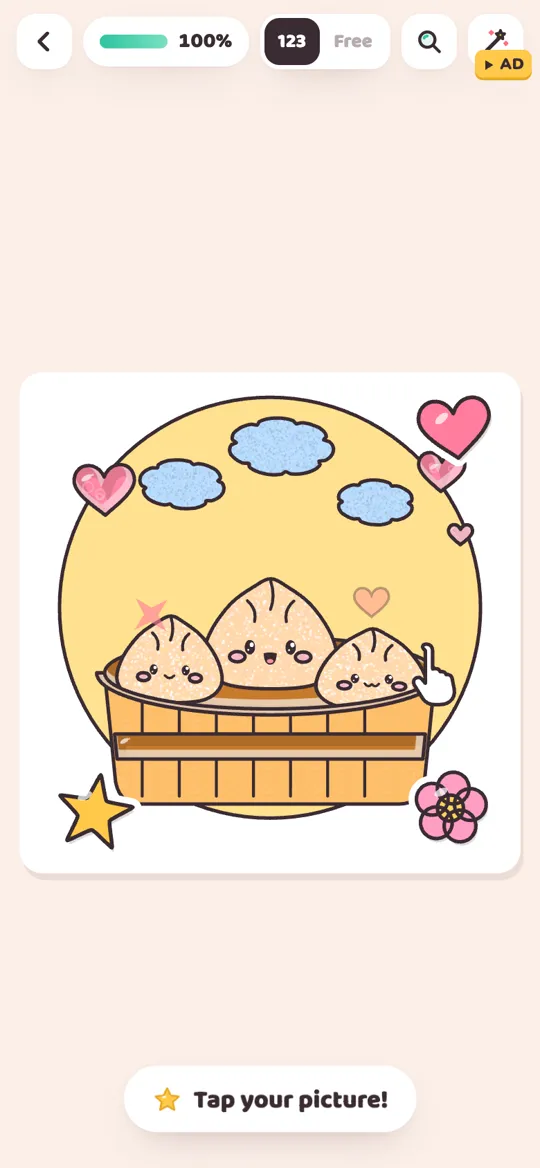
- Watch it back. When the picture is done it comes alive and plays a timelapse, so you get to see each effect go on again.
FAQ
What are the pro tools in Colour Cozy?
The four pro tools are Slime, Glitter, Puffy and Neon. Slime fills an area with one tap, and the other three are painted stroke by stroke with your finger.
How do I unlock slime, glitter, puffy paint and neon?
Tap a locked tool and choose Try it free to watch an optional video and use it for the picture you are coloring now, or choose Unlock to spend gems and keep it for good.
Can I use the pro tools in color by number?
Yes. In color by number the color of each area is fixed, but you can pick any tool to paint it, including all four pro tools.
Why does the neon tool make my area dark?
That is how neon works. It paints the area in a deep night color so your chosen color can glow on top as a bright line, like a neon sign at night.
Do the pro tools have their own sounds?
Yes. Every tool has recorded ASMR sounds. Slime lands with a squish and a bloop, and glitter makes a soft tinkle as you paint. You can turn sound off in Settings.