 Colour Cozy
How to unlock colour packs in Colour Cozy
Find the hidden plus button, pick a pack, and keep its colours forever.
In this guide
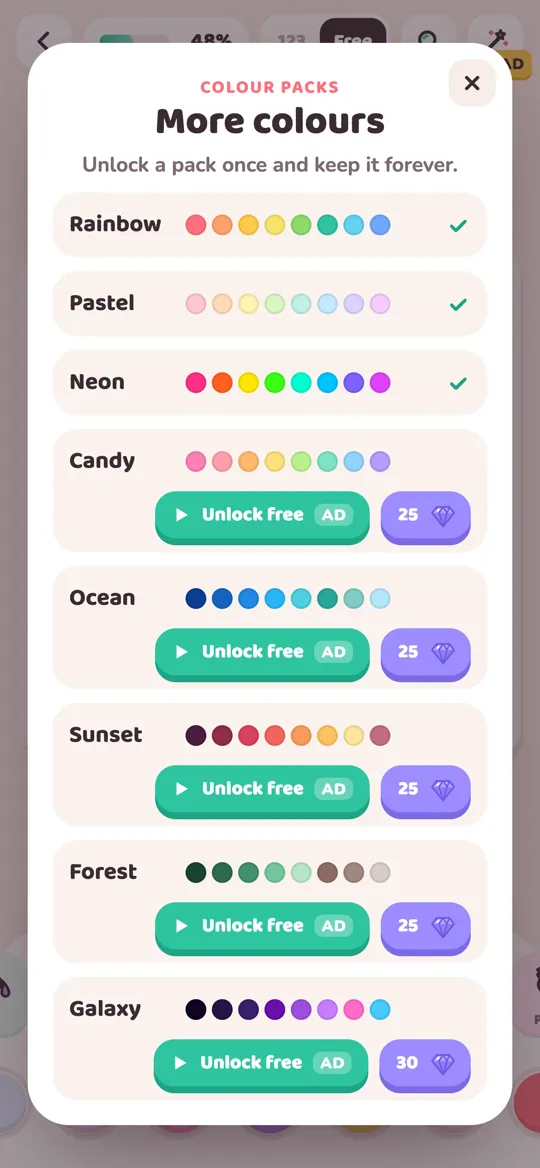
In Colour Cozy, colour packs live in free mode. Switch the top toggle from 123 to Free, scroll to the end of the colour row and tap the plus button to open More colours. Each locked pack has two buttons: Unlock free, which plays one optional video, or a gem button. Once a pack is unlocked, you keep it forever.
Colour Cozy starts you with the Rainbow pack, a bright set of everyday colours. Seven more packs wait behind a small plus button that is easy to miss: Pastel, Neon, Candy, Ocean, Sunset, Forest and Galaxy. This guide shows exactly where that button is, what each unlock option does, and how to choose the pack you will actually use.
If you are new to the game, the guide to all 12 tools explains the tool row first. Tools change the texture of your paint. Colour packs change the colours you can pick.
Where colour packs live
Colour Cozy has two ways to colour a picture, and colour packs only belong to one of them.
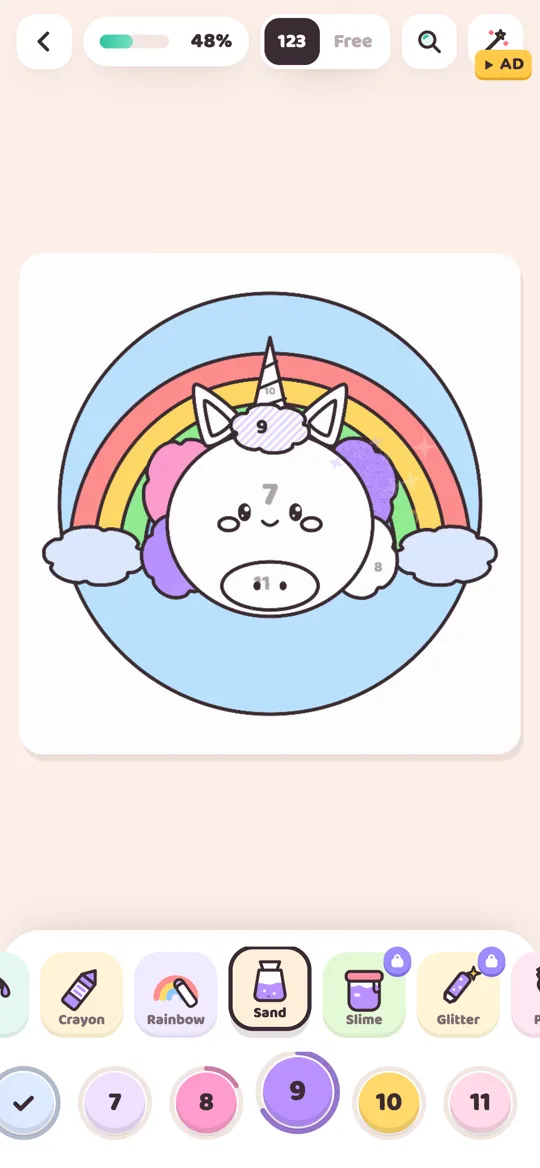
- Colour by number (the 123 side). The swatches are numbered and match the picture. You cannot add other colours here, because each number already has its colour.
- Free mode (the Free side). You choose any colour for any area. The colour row shows the picture's own colours, the Rainbow pack, and every pack you have unlocked.
So the first thing to know: if you never see a plus button, you are probably in colour by number. If you are unsure which mode suits you, read colour by number vs free colouring for the differences.
How to unlock a colour pack, step by step
Here is how to unlock colour packs. These steps work on any picture, including today's picture and anything in your gallery.
- Open a picture and finish tracing the lines, or tap Skip if you want to start colouring straight away.
- At the top of the screen, tap Free on the 123 / Free toggle.
- Look at the colour row at the bottom. Swipe it to the left until you reach the end.
- Tap the round + button after the last swatch. The More colours sheet opens.
- Find the pack you want. Packs you own show a green tick. Locked packs show two buttons.
- Tap Unlock free to watch one optional video, or tap the purple gem button to spend gems.
- When it works, a short chime plays and a message says the pack is unlocked. The sheet closes and the first colour of the new pack is already selected, so you can paint with it right away.
That is all. The pack now sits in your colour row on every picture you colour in free mode.
The two ways to unlock: a video or gems
The More colours sheet says it plainly: unlock a pack once and keep it forever. You do not rent a pack for one picture. Here is how the two buttons differ.
Unlock free (video). This plays one optional video. The pack unlocks only if the video plays to the end. If no video is ready, the game shows a short "try again soon" message and nothing is spent. Wait a little and tap again.
Gems. The purple button shows how many gems the pack costs. If you have enough, the gems are taken and the pack unlocks at once, with no video. If you do not have enough, a small "Not enough gems" message appears and nothing changes.
Neither option is required to enjoy the game. The Rainbow pack plus each picture's own colours already give you plenty to work with in free mode.
How to earn gems while you play
Gems are the game's soft currency, and you can collect them just by coming back to colour.
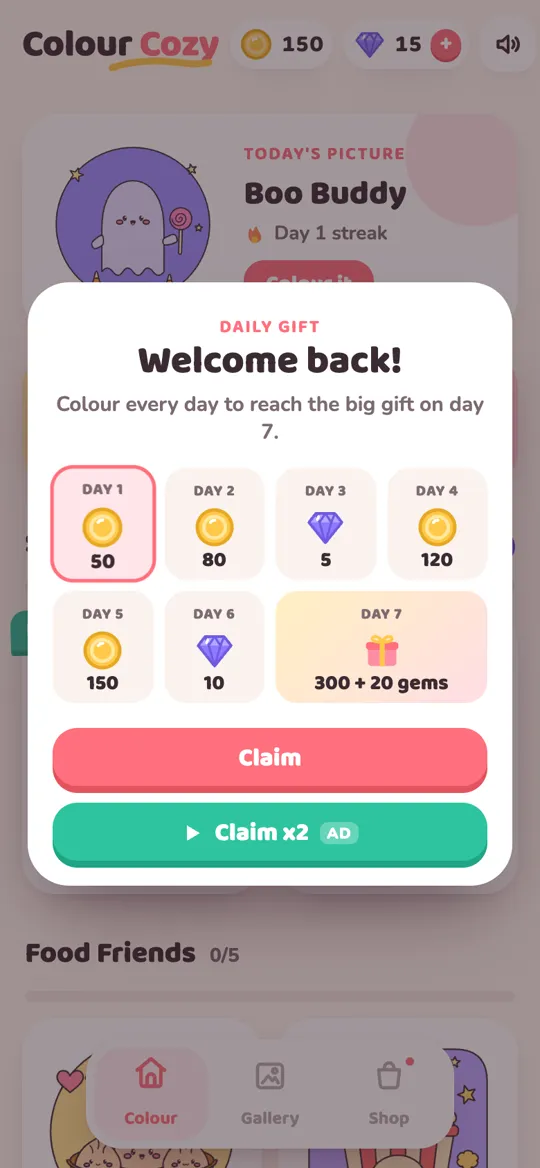
- Claim the daily gift. A calendar of seven days appears when you come back. Some days give coins and some give gems, and day 7 is the big gift with both.
- Double it if you like. The Claim x2 button plays one optional video and doubles that day's reward. Plain Claim is always there too.
- Keep your streak gentle. The calendar moves forward each day you claim, so a short daily colouring session is enough. There are no timers inside the pictures themselves.
You can also buy gems in the Shop with optional in-app purchases. That is a choice for the grown-up who owns the phone, never a step you need to follow this guide.
Which colour pack should you unlock first?
Pick the pack that fits the pictures you colour most often. A pack you will use every day beats the one with the fanciest name.
- Pastel for soft, gentle pictures like the sleepy bunny or a kitty mug. Our pastel palette ideas show how to keep pastels from looking washed out.
- Neon for loud, glowing pictures. It pairs nicely with the Neon pro tool, but you can use neon colours with any tool.
- Candy for sweet pinks, peaches and light greens. Lovely on ice cream, boba and berry cake.
- Ocean for deep and light blues with sea greens. A natural match for the whale.
- Sunset for plums, reds, oranges and warm yellows. Good for skies and for ombre fades.
- Forest for greens, browns and a sunny yellow. Great for leafy backgrounds and the baby dino.
- Galaxy for near-black purples, violets, pink and bright blue. Ideal for the space rocket. The galaxy colour ideas article has a full night-sky plan.
A simple rule: unlock one pack, use it on three pictures, then decide on the next. You learn more from one pack you know well than from seven you never touch.
Tips for using new colours well
New colours are exciting, so it is tempting to use all of them at once. A few small habits keep pictures looking calm and tidy.
- Mix one pack with the picture's own colours. Free mode keeps the picture's original colours at the start of the row. Use them for the main shapes and add pack colours as accents.
- Pick one star colour. Choose a single bright colour from the new pack and use it once or twice, for a bow, a cheek or a star. Everything else stays quieter.
- Try the same picture twice. Colour a favourite picture with Rainbow, then again with Ocean or Sunset. Seeing them side by side in your binder shows how much the palette changes the mood.
- Zoom for small parts. Pinch to zoom before colouring tiny details, so a dark Galaxy colour does not slip into a light area.
For parents: what to know about unlocking
Unlocking colour packs never needs an account. Progress, gems and unlocked packs are saved on the device. The video option is always optional and only gives its reward when the video finishes. Players under 13 only get child-directed, non-personalised ads. If you want to sit with your child the first time they open More colours, that is a nice moment to talk about choosing one pack and enjoying it. Our parent checklist for colouring apps covers ads, purchases and data in more detail, and the privacy policy has the full picture.
FAQ
How do I get more colours in Colour Cozy?
Switch a picture to Free mode, swipe to the end of the colour row and tap the plus button. The More colours sheet lets you unlock Pastel, Neon, Candy, Ocean, Sunset, Forest and Galaxy.
Can I unlock colour packs for free?
Yes. Each locked pack has an Unlock free button that plays one optional video. You can also use gems, which you collect from the daily gift calendar without paying.
Do unlocked colour packs expire?
No. The More colours sheet says you unlock a pack once and keep it forever. It stays in your colour row on every picture you colour in free mode.
Why can't I see the plus button?
You are most likely in colour by number, where the swatches are numbered and fixed. Tap Free at the top of the screen, then swipe the colour row to the end.
Can I use colour pack colours in colour by number?
No. Colour by number uses the numbered colours that belong to each picture. Pack colours appear in free mode, where you choose any colour for any area.