 Colour Cozy
Coloring apps for kids: a parent checklist
Most coloring apps look sweet in the store. The differences hide in the ads, the shop and the privacy policy. Here is what to check, and how.
In this guide
Before you install a coloring app for your child, check five things: how ads appear and whether they are labelled, whether purchases sit behind a grown-up check, whether the app needs an account or collects personal data, whether there are timers or pressure to keep playing, and whether the tools are simple enough for your child's age. Then spend ten minutes playing it yourself before you hand it over.
Coloring apps for kids all look alike in a store listing: bright pictures, a happy mascot, the word "free". The real differences only show up once you play. One app might show an ad every few taps. Another might put a big shop button next to every picture. A third might be quiet, simple and fine to leave with a six-year-old.
This checklist helps you tell them apart. It works for any coloring app, not just ours. Where it helps, we show how Colour Cozy handles each point, so you can see what an answer looks like in practice.
Before you install: read the listing like a parent
You can rule out a lot of apps without downloading anything. Open the store page and look for these:
- The content rating. On Google Play this sits under the app name. A coloring app should normally be rated for everyone.
- "Contains ads" and "In-app purchases". Both labels appear near the install button. Neither is a deal-breaker, but you now know what to look for later.
- The privacy policy link. It should be easy to find and written in plain words. If there is no link, skip the app.
- Who the app is for. Some coloring apps are made for toddlers, some for adults, some for both. A mixed-audience app should explain how it treats younger players.
- The data safety section. It summarizes what the developer says is collected and shared. Compare it with the privacy policy; they should tell the same story.
Independent reviews from parent-focused sites are worth a look too, since an age label in a store and the age an app actually suits are not always the same.
The checklist: ten questions to answer
Once an app passes the store check, these are the questions that matter day to day.
- Are ads labelled and optional? The friendliest pattern is a reward video your child chooses to watch, with a clear "AD" label on the button. Banners that sit under the picture all the time are easy to tap by accident.
- When do full-screen ads appear? An ad between finished pictures is a natural break. An ad in the middle of coloring is not.
- Are purchases behind a grown-up check? A child should not be one tap away from a payment screen.
- Does it need an account? A coloring app rarely needs a name, email or photo. If it asks, find out why.
- What happens to the pictures? Check whether drawings stay on the device or are uploaded somewhere.
- Are there timers or levels to fail? Countdown clocks and lost lives turn a calm activity into a stressful one.
- How hard does it push your child to come back? Daily rewards and streaks are common. Decide whether you are comfortable with them.
- Are the tools right for your child's age? Tap-to-fill suits small fingers. Brushes and fine detail suit older kids. Pinch zoom helps everyone.
- Is there a way to color without rules? Color by number is relaxing, but a free mode lets kids choose their own colors.
- Can you delete the data? A good app tells you how, in the app or on its website.
How Colour Cozy answers the checklist
Here is how our own app lines up, based on its privacy policy and store listing. Colour Cozy is coming soon to Google Play, so you can use this as a reference while you compare.
Ads. Colour Cozy has no banner ads. It shows videos a player chooses to watch for a reward, and an occasional full-screen ad after a finished picture. Buttons that start a video carry an "AD" label.
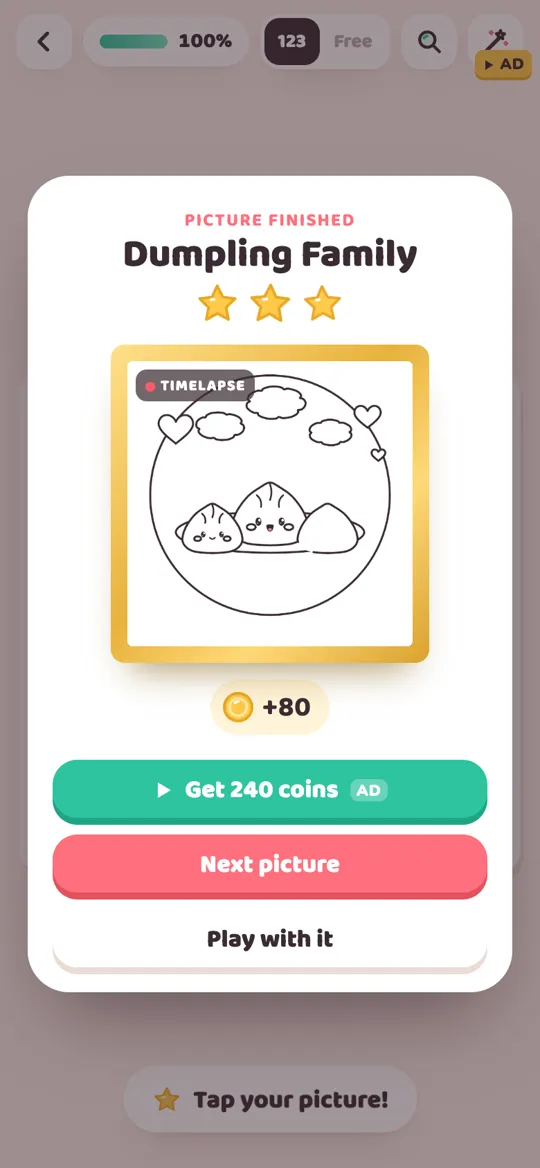
Purchases. When the app first opens it asks for the player's birth year, and the answer stays on the device. Players who say they are under 13 have purchases and outside links behind a grown-up check, and they do not see the special offer pop-up.
Accounts and privacy. There is no sign-up. Pictures, coins and unlocked colors are saved only on the phone, and the developer never receives the pictures. Under-13 players only get child-directed, non-personalised ads. The app follows Google Play's Families policy. You can read the full privacy policy in a few minutes.
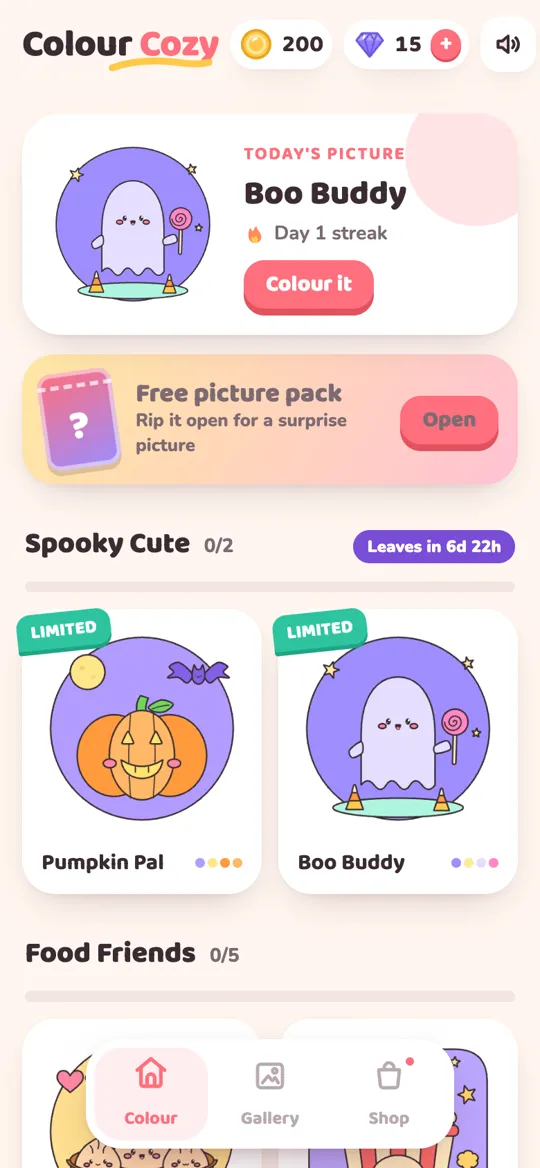
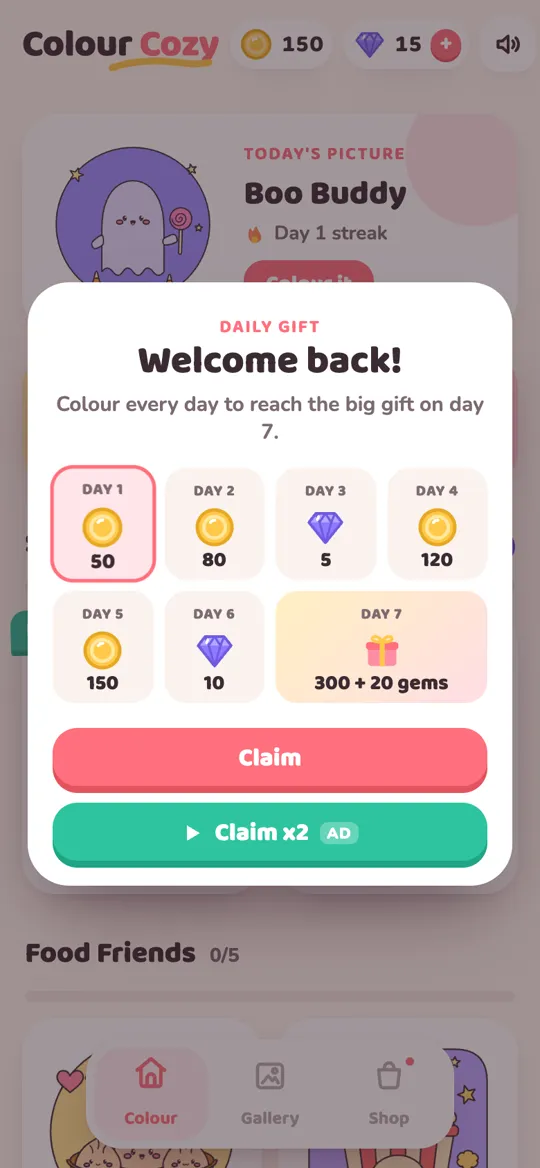
Timers and pressure. There are no timers while you color and no levels to fail; a picture is finished when your child says so. There is a daily gift and a free picture pack each day, which are gentle reasons to come back. Some packs, like the Spooky Cute pack on the home screen, are limited and show when they leave.
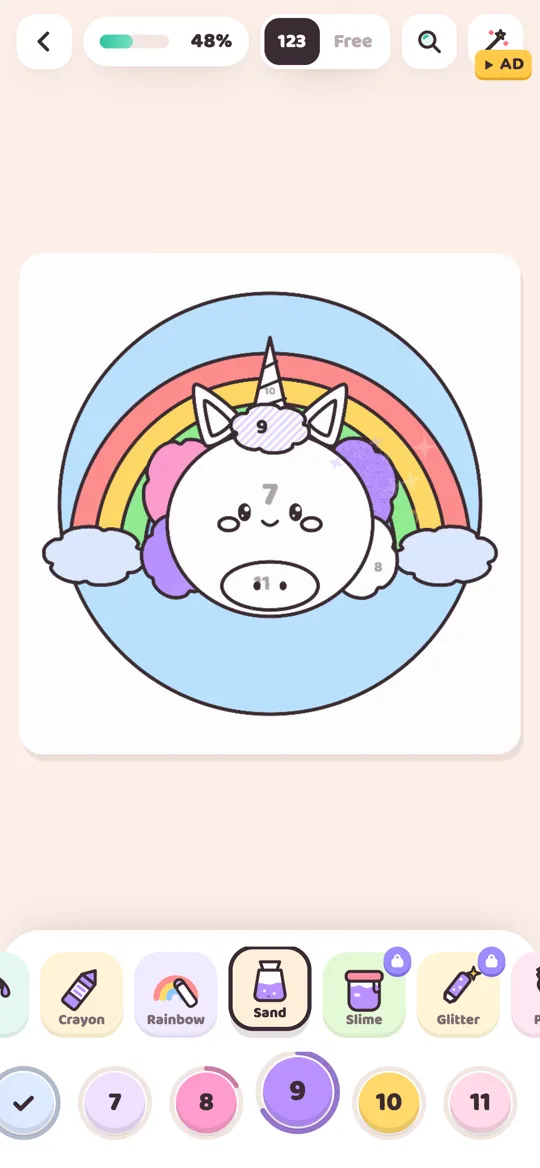
Tools and modes. Every picture starts with tracing the lines, then your child can color by number or switch to free mode. Gentle hints show when a color does not match, and pinch zoom helps with small parts. Our guide to color by number and free coloring explains both modes in more detail.
Deleting data. Open Settings and tap "Delete my data", or uninstall the app. The steps are also on the delete data page.
Run a ten-minute test before handing it over
The checklist gets you most of the way. The last step is to play the app yourself, the way your child will.
- Turn on airplane mode, then turn it off. Note what the app does without a connection and what changes when it comes back.
- Color one full picture. Watch for ads, pop-ups and anything that interrupts the picture.
- Tap every button on the finished screen. See which ones start a video, which open a shop and which simply move on.
- Open the shop. Try to buy something and see whether a grown-up check stops you.
- Open Settings. Look for sound, ad privacy choices, restore purchases and a way to delete data.
- Close and reopen the app. Notice any pop-ups that appear on launch, such as daily rewards or offers.
- Listen with sound on. Some apps are loud or have music you may want to switch off at bedtime. If calm sounds matter to you, our post on ASMR coloring explains what that style of sound is about.
If anything surprises you, it will surprise your child too. Better to find out now.
Make it a shared activity
Even the gentlest app is better with company now and then. Sit with your child for the first few pictures. Ask why they picked a color. Let them show you the finished card or the timelapse. It turns the app into something you talk about, and you learn quickly whether it suits them.
A simple house rule also helps: tablets and phones come out for a set amount of coloring, then go back on the shelf. A coloring app without timers leaves that decision with you, which is where it belongs.
FAQ
What should parents look for in a coloring app for kids?
Check how ads appear and whether they are labelled, whether purchases need a grown-up, whether an account or personal data is required, whether there are timers or pressure, and whether the tools suit your child's age.
Are free coloring apps OK for kids?
Many are fine. Free apps usually earn money from ads or purchases, so check that ads are labelled and optional and that purchases sit behind a grown-up check before your child plays alone.
Does Colour Cozy need an account?
No. There is no sign-up, and pictures, coins and unlocked colors are saved only on the device. The app does not run its own servers and never receives your child's pictures.
Does Colour Cozy have ads?
Yes, but no banners. There are optional reward videos marked with an AD label and an occasional full-screen ad after a finished picture. Players under 13 only get child-directed, non-personalised ads.
How do I delete my child's data in Colour Cozy?
Open Settings in the app and tap "Delete my data", or uninstall the app. Because progress is stored only on the phone, there is no online account to close.