 Colour Cozy
How to save and share your coloring timelapse
Every finished picture in Colour Cozy replays itself. Here is how to keep that replay, send it to someone, and make the next one even nicer to watch.
In this guide
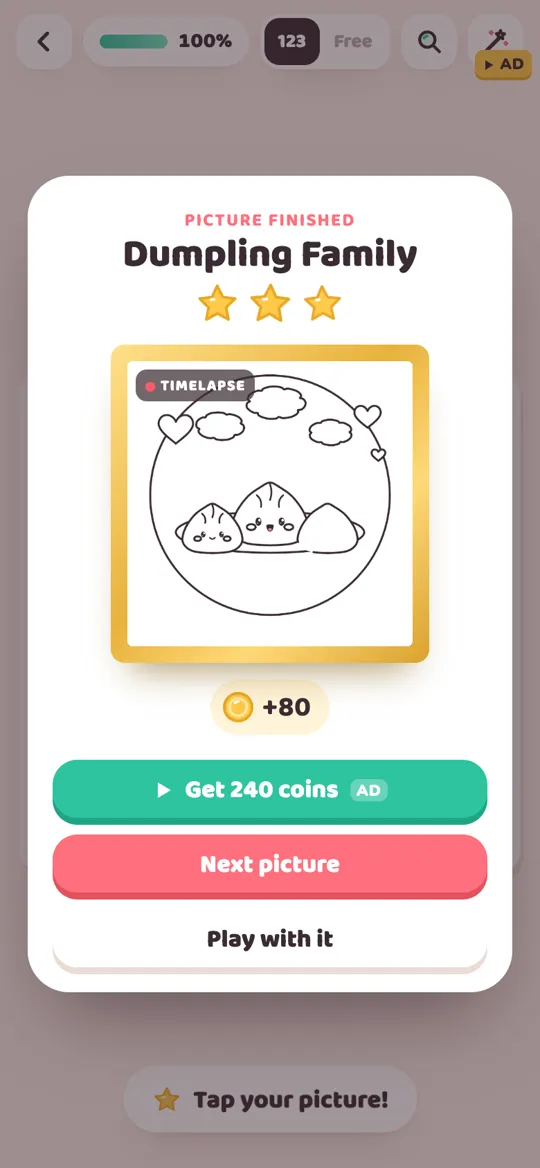
To share your coloring timelapse in Colour Cozy, finish a picture and wait for the Picture finished card. Under its buttons you will find three choices: Save puts a picture card in your phone's gallery, Share sends that picture card, and Timelapse records about eight seconds of the replay and opens your phone's share sheet. Use them before you leave the card, because the binder lets you play with finished pictures but does not show these buttons.
The best part of finishing a picture is watching it build itself again, line by line and colour by colour. This guide shows exactly how to keep that moment: what each button does, where the files end up on an Android phone, and how to colour so the replay looks good. It also covers a few simple habits for families who share pictures with grandparents or friends.
Where the save and share buttons are
Everything happens on one screen. When you colour the last area, the picture plays a short celebration and wakes up. A moment later the Picture finished card slides in.
The card shows the picture's name, three stars, your coin reward and a gold frame. The frame is not a still image: it is the timelapse, replaying your work on a loop. Below the main buttons sits a small row with three more:
- Save puts a picture card in your phone's gallery.
- Share sends that same picture card to an app you choose.
- Timelapse records the replay as a short video and opens the share sheet.
The Get coins button is an optional video and has nothing to do with saving. You can ignore it.
How to share your coloring timelapse, step by step
Here is the full path for the video.
- Finish the picture. Colour every area, in colour by number or free mode. If one tiny spot is left, the magnifier button at the top finds it for you.
- Wait for the Picture finished card. Enjoy the stamp (such as "Amazing!" or "So cute!") and the confetti first; the card appears on its own a few seconds later.
- Tap Timelapse in the small row under the main buttons.
- Wait while it records. The button changes to "Recording…" and the replay starts again from the beginning. It records one loop, about eight seconds, so keep the app open until the button changes back.
- Choose where it goes. Your phone's share sheet opens with the video and a short message ready. Pick a chat app to send it, or pick a "save" or files option on your phone if you want to keep a copy.
The video is made on your phone and only goes where you send it from the share sheet. Colour Cozy has no account and no feed of its own.
How to save the finished picture
The Save button works differently from the video. It does not open the share sheet; it saves straight to your phone.
- On the Picture finished card, tap Save.
- Look for the small "Saved to your gallery" message.
- Open your phone's gallery or photos app and find the Colour Cozy album inside Pictures.
What you get is a tall picture card rather than a bare square. Your finished picture sits in a white frame on a soft pink-to-lilac background, with the picture's name and the words "Coloured in Colour Cozy" underneath. Any stickers you placed are included. It is shaped to look neat in a chat, as a phone wallpaper, or printed for the fridge.
The Share button makes the same picture card but hands it to the share sheet instead, so you can send it straight to someone.
Make a timelapse that is fun to watch
The replay follows the order you worked in. The tracing plays first and quickly, then your colouring, then the finished picture holds for a moment before the loop starts again. Because the whole video is short, the order you colour in matters more than how long you take. A few ideas:
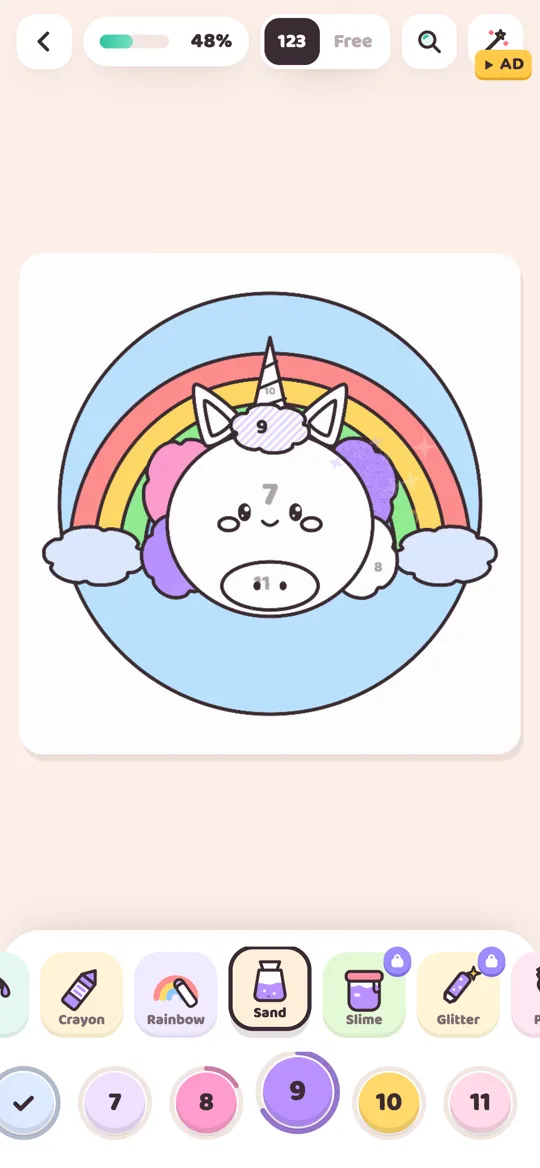
- Big to small. Fill the background and large shapes first, then the faces and little details. The picture "appears" and then comes into focus.
- Inside out. Start with the main character and finish with the sky or the frame. Viewers see who the picture is about straight away.
- One colour at a time. In colour by number this happens naturally. It gives the replay a calm, layered rhythm, a bit like a printer adding one ink at a time.
- Save the sparkle for last. Stickers pop in at the moment you placed them. Adding them at the very end gives the video a little finale.
- Show off a texture. Sand, slime and glitter each look different in the replay. Our tools guide explains what each of the 12 tools does, so you can pick one that will stand out.
If you are deciding between modes, color by number vs free coloring compares how each one feels. Free mode tends to give a more personal replay, because the colour order is entirely yours.
Before you leave the card
One thing catches people out. The Save, Share and Timelapse buttons live only on the Picture finished card. Once you tap Next picture or Play with it, the card closes.
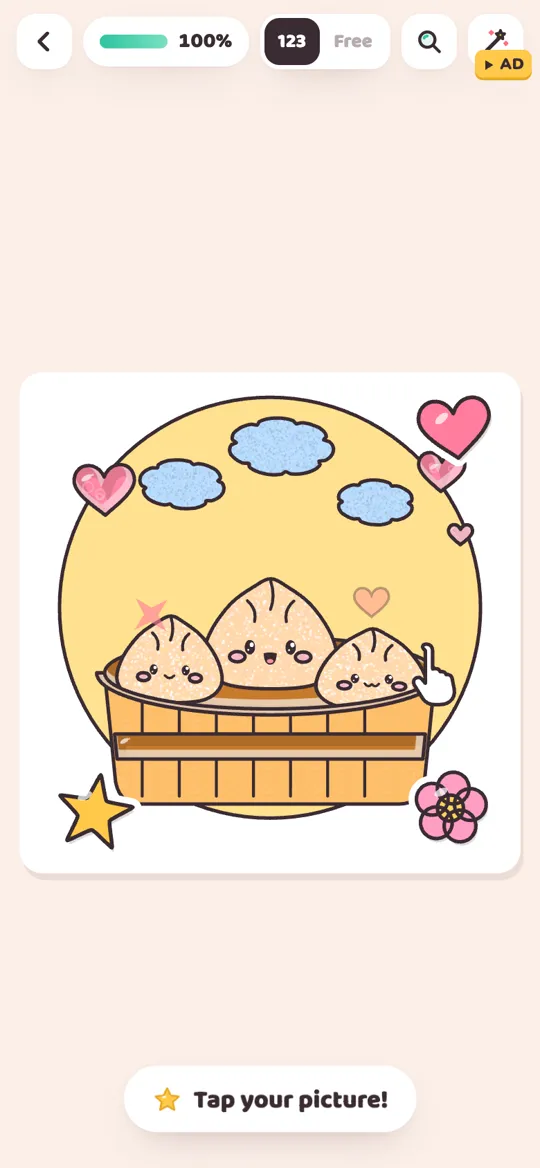
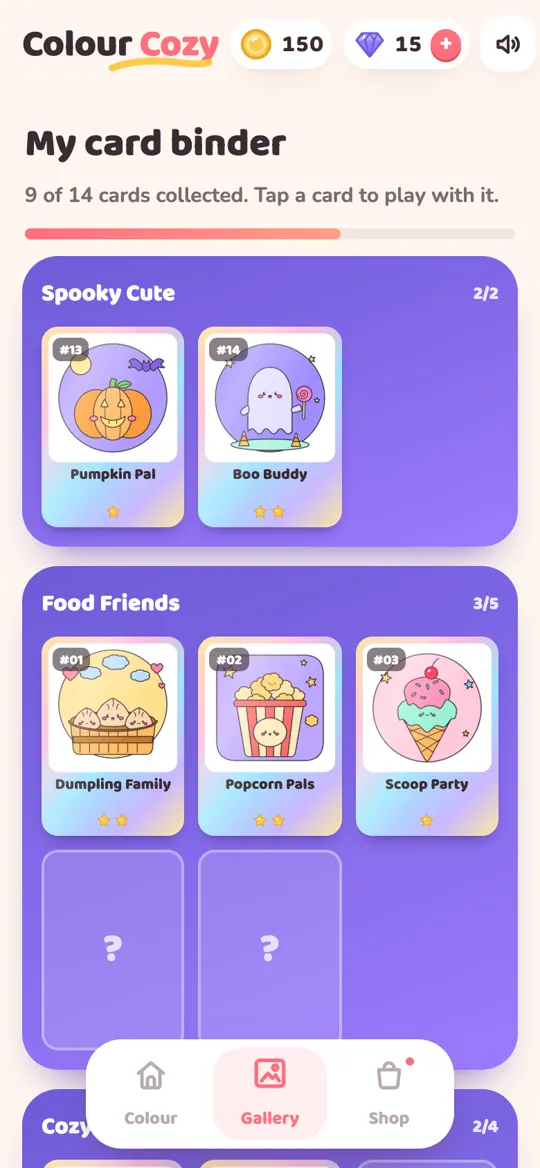
Your picture is not lost. It becomes a foil card in your binder, and tapping that card opens it as a living scene you can play with. The card binder guide explains how that works. But the binder is for playing, not exporting, so make a habit of tapping Save or Timelapse first if you think you will want a copy.
Sharing pictures as a family
Sharing a timelapse is a lovely way for a child to show a grandparent what they made. A few simple habits keep it relaxed:
- Let the child press the button. Choosing to share is part of feeling proud of the work.
- Pick the recipient together. The share sheet lists every app on the phone, so a grown-up should help choose the right chat.
- Keep the message short. Colour Cozy adds a friendly line such as "My Dumpling Family timelapse in Colour Cozy!" Most chat apps let you edit or delete it before sending.
- Make a family album. Saved picture cards all land in the same Colour Cozy album, which turns into a little gallery over time.
If you are still choosing apps for your child, our parent checklist for coloring apps covers what to look for, including how sharing and ads are handled.
Colour Cozy is coming soon to Google Play:
FAQ
Can I share the timelapse later from the binder?
No. The Timelapse, Save and Share buttons appear only on the Picture finished card. Tapping a card in the binder opens the picture as a living scene to play with, without export buttons, so save or share before you leave the card.
How long is the timelapse video?
The app records one loop of the replay, which takes about eight seconds. The button shows "Recording…" while it works; keep the app open until it changes back and the share sheet opens.
Where do saved pictures go on Android?
Tapping Save puts a picture card in your phone's gallery, in a Colour Cozy album inside Pictures. A small "Saved to your gallery" message confirms it worked.
Does the saved picture include my stickers?
Yes. Stickers you placed are drawn onto the saved and shared picture card, and in the timelapse they pop in at the moment you added them.
Do I need an account to share?
No. Colour Cozy has no accounts. The picture card and the video are made on your phone and handed to your phone's own share sheet, so they only go where you choose to send them.
What file type is the timelapse?
It is a short video file. The exact format depends on what your phone supports, MP4 or WebM, and the app picks it for you automatically.