 Colour Cozy
How the card binder works in Colour Cozy
Every picture you finish becomes a shiny foil card. Here is how to find it, read it and play with it again.
In this guide
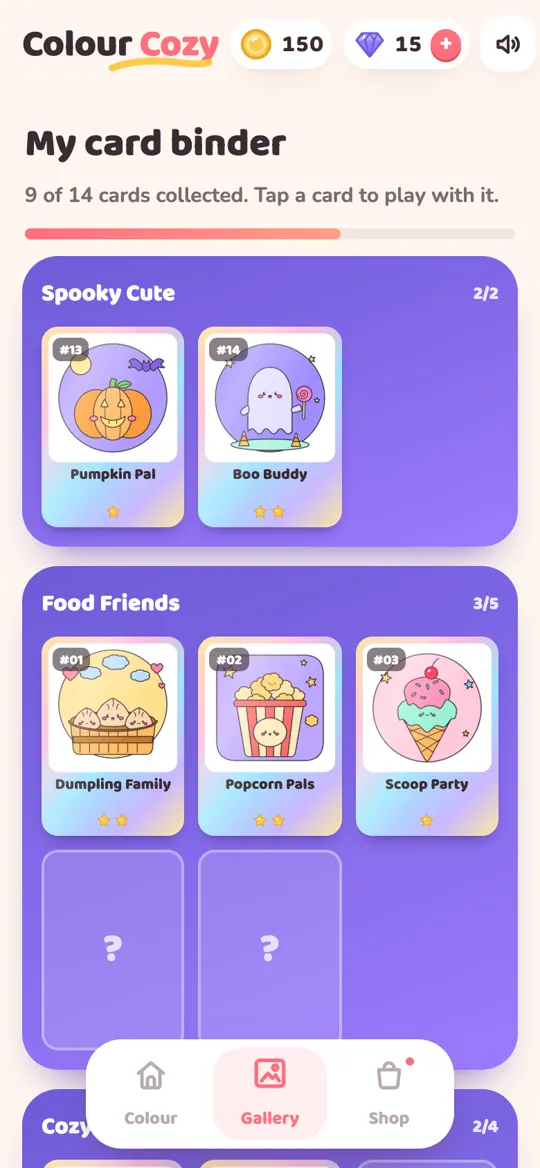
The card binder is the Gallery tab in Colour Cozy. Each picture you finish becomes a foil card showing your own colours, with a number, a name and one to three stars. Cards are grouped by picture pack, empty slots show a question mark, and tapping any card opens that picture again so you can tap it and watch it come alive.
Finishing a colouring page feels lovely, and then a small question pops up: where did it go? The answer is the Colour Cozy card binder. Every finished picture is kept there as a shiny foil card, painted exactly the way you coloured it.
This guide walks through the binder piece by piece: how to open it, what each part of a card means, how the empty slots work, and how to bring a finished picture back to life. If you are brand new to the game, start with the guide to all 12 tools, then come back here once your first picture is done.
How to open the card binder
The binder lives in the floating tab bar at the bottom of the home screen. It has three tabs: Colour, Gallery and Shop.
- Go back to the home screen. If you are still inside a picture, tap the back arrow in the top left corner.
- Look at the tab bar at the bottom. Tap Gallery, the middle tab with the small picture frame icon.
- The page that opens is called My card binder. Scroll down to see every section.
At the very top you will see a line such as "9 of 14 cards collected" and a soft progress bar under it. The bar fills a little more with each new card, so you can tell at a glance how much of the collection you have finished.
What each part of a card means
Every card in the binder has the same simple layout. Once you know what each part does, the whole page makes sense.
- The number. The small dark tag in the top left corner, such as #01 or #13, is the card's place in the full collection. Numbers stay the same, so a card always lands in the same spot.
- The picture. This is your own artwork, not a stock image. The colours, tools and stickers you used are all saved on the card.
- The name. Each picture has a friendly name, such as Dumpling Family, Popcorn Pals or Scoop Party.
- The stars. Each card shows one, two or three stars. They hint at how big the picture is: pictures with more areas to colour earn more stars. A three-star card took a little more patience.
- The foil shine. Cards have a rainbow foil edge and a slow shimmer that slides across them. It is purely for fun and does not change anything.
Above each group of cards sits the section name and a small count, such as 3/5. That tells you how many cards you own in that pack and how many it holds in total.
The sections and the question mark slots
The binder is split into the same picture packs you see on the home screen: Food Friends, Cozy Critters and Big Adventures, plus Spooky Cute, a limited pack that came with the autumn season. Cards you finished from a limited pack stay in your binder.
Inside each section, any picture you have not finished yet shows as an empty slot with a big question mark. The slot keeps the picture a surprise until you colour it. It does not mean you did something wrong or missed anything.
Here is how to turn a question mark into a card:
- Go to the Colour tab on the home screen.
- Find the section with the empty slot and pick a picture without a check mark.
- Trace the lines, or tap Skip, then colour it by number or in free mode.
- When every area is coloured, the picture is finished and the card appears in the binder.
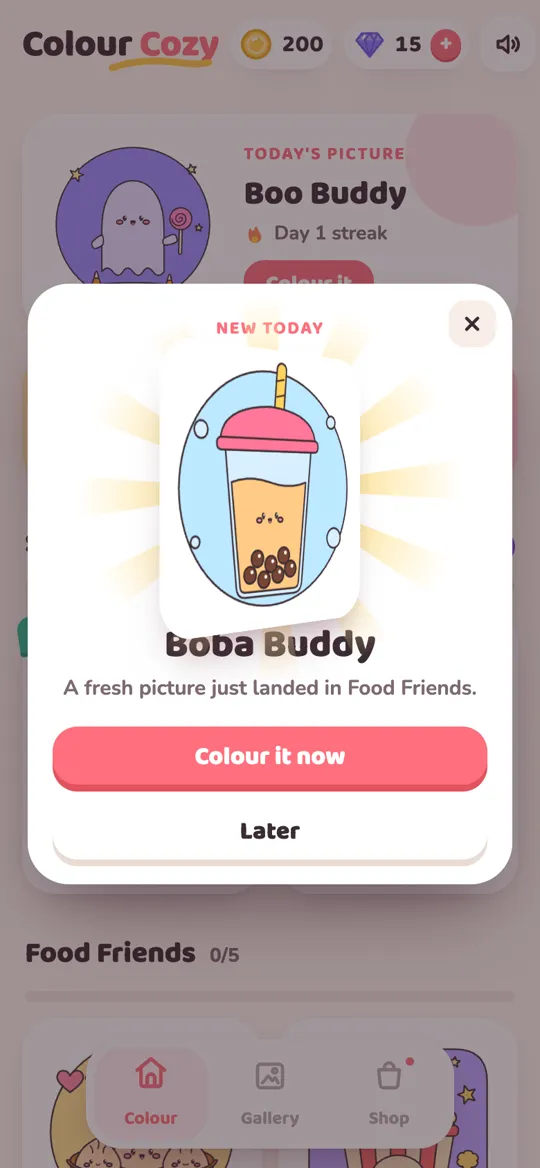
New pictures open over your first few days of play. A free picture pack is waiting on the home screen each day, and when you rip it open a new line-art card slides out, ready to colour. If a picture shows a small lock, it also shows the coin or gem price to open it now, but waiting is always fine. Our guide on how to unlock colour packs explains how to collect gems from the daily gift.
How to play with a finished picture again
The best part of the binder is that the cards are not just pictures to look at. Each one is a door back into your finished artwork.
- Open the Gallery tab and scroll to the card you want.
- Tap the card. It gives a little squish, and your finished picture opens full screen.
- A pill at the bottom says Tap your picture! Tap different parts of the picture and watch them react.
- When you are done, tap the back arrow to return.
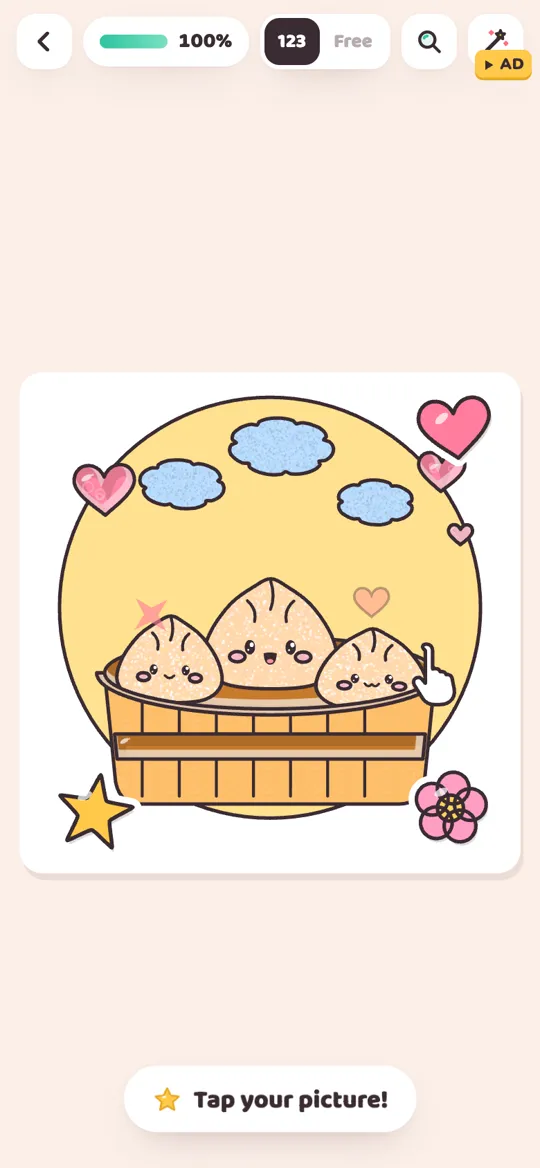
This is the same living scene you see right after finishing a picture. You can open it from the binder as often as you like, which makes the binder a nice place to show a friend or a grandparent what you made.
What happens the moment a card is made
When you colour the last area, the picture plays a short celebration, wakes up, and then a Picture finished card appears. It shows the picture's name, three stars, a golden frame with a timelapse of your colouring, and the coins you earned.
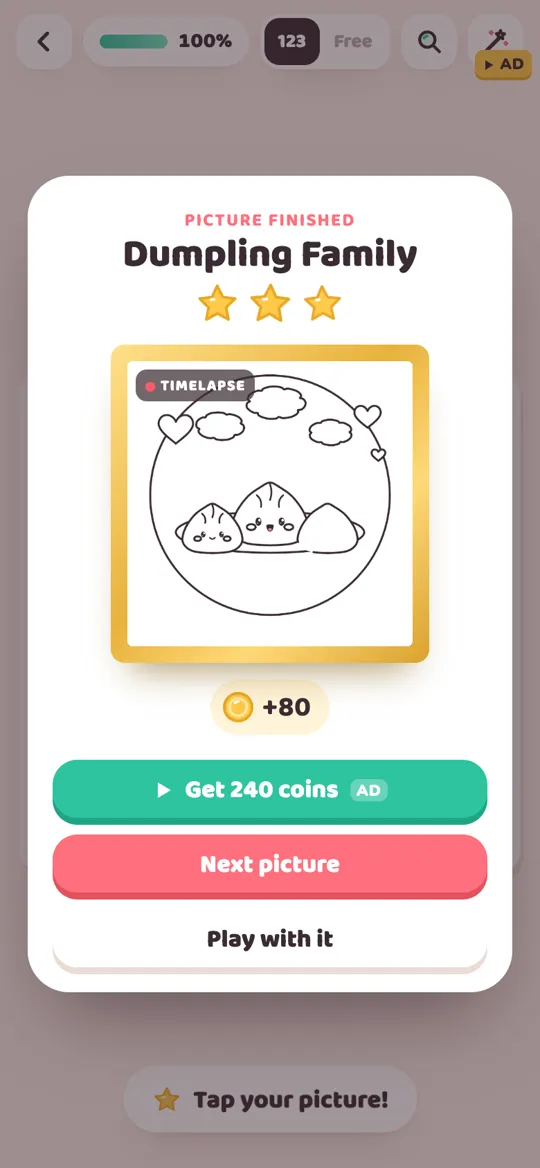
From here you have a few choices:
- Next picture takes you straight to something new to colour.
- Play with it keeps you in the living picture so you can tap around.
- The optional coin button plays one video for extra coins. Skipping it changes nothing about your card.
- Under the buttons you can save the picture, share it, or share the timelapse.
Whichever you pick, the card is already in your binder. You do not need to press a save button for that.
Small habits that make collecting more fun
A binder works best as a calm, slow collection, not a race. A few ideas:
- Finish one section first. Completing a whole pack, like all five Food Friends, gives a cosy sense of "done".
- Look back before you start. Open the binder, pick a card you love, and copy one of its colours into today's picture.
- Mix your styles. Try sand on one card and glitter on the next. Side by side in the binder, the difference in texture is easy to spot.
- Share the binder, not just one picture. Scrolling through the cards together is a gentle way for a child to talk about what they made.
For parents: what the binder stores
The binder lives on the device. Colour Cozy has no accounts, so the cards, coins and unlocked colours are saved locally and are not uploaded to a profile. There are no timers, and a finished card stays in the binder. The privacy policy has the full details, and our parent checklist for colouring apps covers ads and purchases.
FAQ
Where do my finished pictures go in Colour Cozy?
Every finished picture becomes a foil card in the card binder. Tap Gallery in the bottom tab bar on the home screen, and the My card binder page lists all of your cards by pack.
What do the stars on a card mean?
Each card shows one to three stars. Pictures with more areas to colour get more stars, so a three-star card is one of the bigger, more detailed pictures.
Why are some binder slots a question mark?
A question mark is a picture you have not finished yet. Colour that picture from the Colour tab and the slot turns into your own foil card.
Can I see my picture come alive again?
Yes. Tap any card in the binder. The picture opens full screen with a Tap your picture! hint, and you can tap its parts to watch them react as often as you like.
Do I need an account to keep my cards?
No. Colour Cozy does not use accounts. Your cards and progress are saved on your device, so you can open the binder any time without signing in.