 Colour Cozy
Happy Color keeps crashing or freezing: fixes in a safe order
Most crashes come from a stale app, a full phone or a bad cache. Work through the gentle fixes first and keep reinstalling for last.
In this guide
If Happy Color keeps crashing, close the app fully, restart your device, update the app and your system, free up storage, then clear the app's cache (never its storage or data). Back up your progress inside the app before you reinstall, because deleting an app can delete pictures saved only on the device. If nothing helps, contact the developer, X-Flow, through the app's Contact Us option.
You open the app, the picture loads, you tap a cell and you are back on your home screen. Or the screen freezes halfway through a picture you have spent an hour on. It is annoying, and the first instinct is to delete the app and install it again.
Please do not start there. Reinstalling is the one fix that can cost you your colored pictures. This guide puts the fixes in a safe order, gentle ones first, and shows you how to protect your progress on the way. We do not make Happy Color, so the steps below are standard Android and iPad fixes that work for most apps, plus what the game's own store page says.
Why a coloring app crashes or freezes
Coloring apps look simple, but they hold a lot of pictures. Each one has many tiny cells, and a big library means a big app. Four causes cover most problems:
- An old version. The app or your system is out of date, and they no longer fit together well.
- A full phone or tablet. With very little free storage, apps cannot save or load, so they freeze or close.
- A tired device. Many apps open at once leave little memory for a detailed picture.
- A stale cache or a weak connection. New pictures fail to download, and you see a loading screen that never ends.
Happy Color's App Store listing says it needs iOS 15.0 or iPadOS 15.0 or later. If your iPad is older than that, the game may stop opening after an update, and no setting will fix it.
Quick match: problem and first fix
Find your problem in the table, try the first fix, then follow the full list below if it comes back.
| What happens | Try first | Can it erase progress? |
|---|---|---|
| Closes when you tap a color | Close the app fully, restart the device | No |
| Freezes in the middle of a picture | Close other apps, free up storage | No |
| Will not open at all | Update the app and the system | No |
| Pictures do not load | Check Wi-Fi or mobile data, then clear cache | No |
| Ads do not play | Check the connection, restart the app | No |
| Crashes after every fix | Back up, then reinstall | Yes, if you skip the backup |
Seven fixes for when Happy Color keeps crashing
Do these in order and test the game after each one.
- Close the app fully. On Android, open Settings, then Apps, choose the game and tap Force stop. On an iPad or iPhone, swipe up from the bottom, pause, then swipe the app card away.
- Restart your phone or tablet. Turn it off completely, wait a moment and turn it on again. This clears memory that other apps were holding.
- Update the app. Open Google Play or the App Store, search for the game and tap Update if you see it. Crash fixes often arrive this way.
- Update your system. On Android, look under Settings, then System or Software update. On iPad, go to Settings, General, Software Update.
- Free up storage. Delete old videos, unused apps or downloads you no longer need. Then open the game again.
- Clear the cache on Android. Go to Settings, Apps, the game, Storage, and tap Clear cache only. Do not tap Clear storage or Clear data.
- Reinstall as a last step. Only after you have backed up your progress, as described in the next section.
On an iPad there is no cache button. Instead, try Settings, General, iPad Storage, choose the app and tap Offload App. Offloading removes the app but keeps its documents and data, and tapping the icon installs it again. "Delete App" is different: it removes the data too.
How to protect your colored pictures
Lost progress hurts more than a crash. The game's store listing says you can save progress across devices and back up your progress and personal settings. So before any reinstall:
- Look for the backup or sign-in option. Open the app's settings or More section and turn on whatever backup it offers. Menu names can change between versions, so read what is on your screen.
- Check it worked. If the app shows that your progress is saved or synced, you are ready. If you are not sure, do not delete anything yet.
- Save favorites as images. If the game lets you share or save a finished picture, keep your best ones in your photo gallery.
- Use the same account afterwards. After reinstalling, sign in the same way you did before, or the app will look empty.
If you never backed up and the pictures are already gone, write to the developer before you do anything else. They are the only ones who can tell you whether anything can be recovered.
When to contact the developer
If the game still crashes after all seven steps, the problem is probably not on your side. Happy Color is made by X-Flow, and the listing points players to the Contact Us option in the app's More section and to a support email shown on the store page.
A good message gets a faster answer. Include:
- Your device model, for example the tablet's name and year.
- Your Android or iPadOS version.
- The app version, shown on the store page or in the app's settings.
- What you tapped just before it closed, and whether it happens on one picture or all of them.
While you wait, you do not have to stop coloring. Our guide to apps like Happy Color sorts the alternatives by how you color, and a printed page with pencils never freezes.
How Colour Cozy saves your pictures
We make Colour Cozy, a calm coloring game for Android that is coming soon to Google Play. It is not out yet, so it cannot replace your game today, but here is how it handles saving, checked against the game's code and its privacy policy.
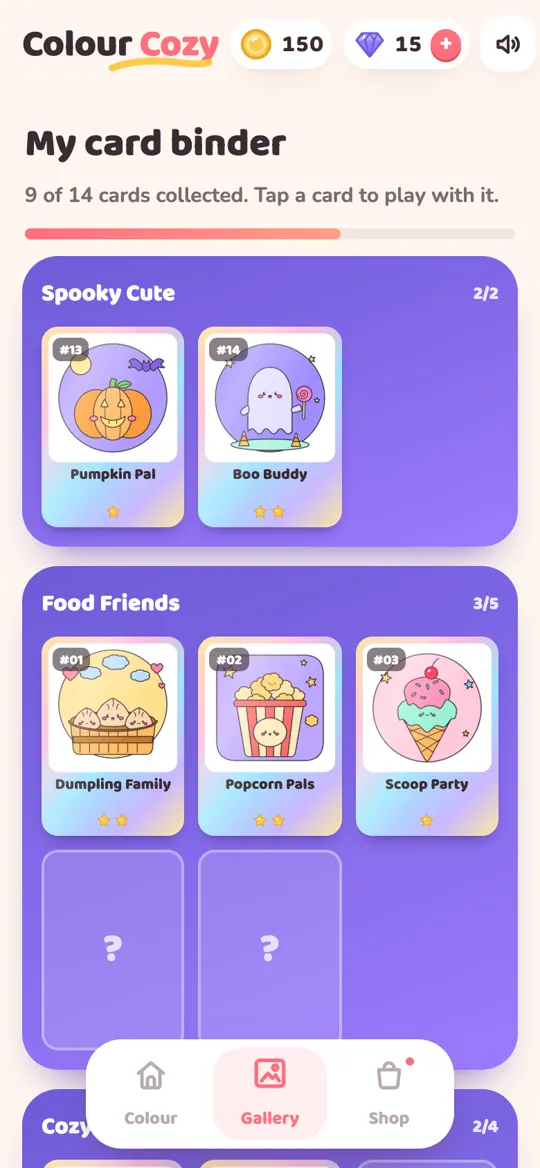
There is no account. Your finished pictures, coins and unlocked colors are saved only on your device, and each finished picture becomes a foil card in a binder. That keeps things simple and private, and it also means the same rule applies: uninstalling the game or tapping "Delete my data" in Settings removes them from that phone. You can save a picture to your gallery to keep a copy outside the game.
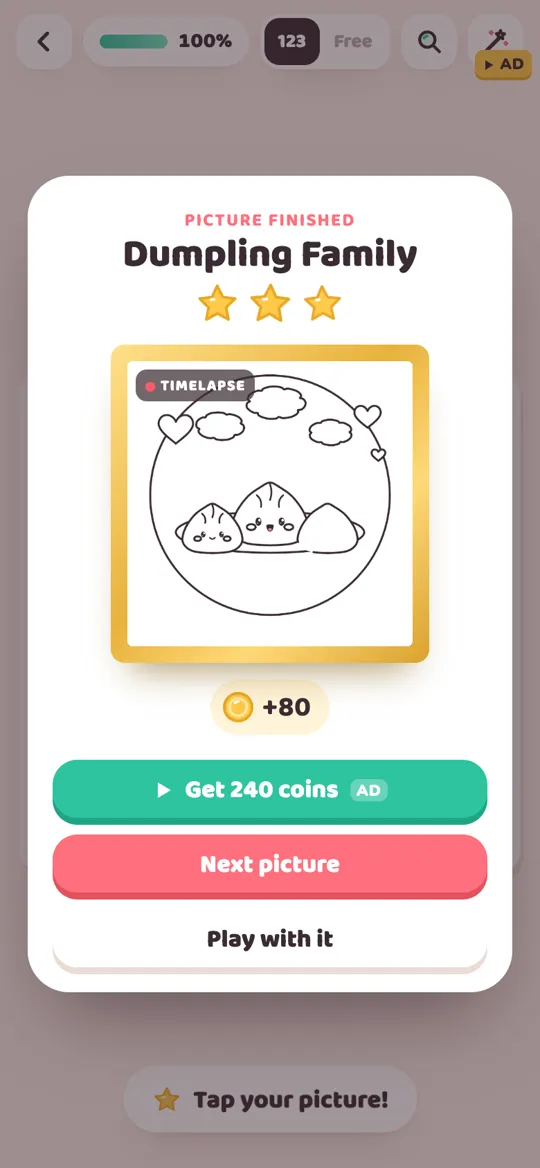
You trace a picture first, then color by number or in free mode with 12 tools, and there are no timers. Ads are part of the game too, and we explain exactly when they show in what "no ads" really means in a color by number app.
FAQ
Why does Happy Color keep crashing?
The usual causes are an out-of-date app or system, very little free storage, too many apps open at once, or a stale cache. Close the app fully, restart the device, update everything and free some space before you try anything else.
Why does Happy Color keep freezing on my iPad?
Check that your iPad runs iPadOS 15.0 or later, which the App Store listing asks for. Then close other apps, restart the iPad, update the game and free up storage. Offload App in iPad Storage is a gentle way to refresh it.
Will I lose my progress if I reinstall Happy Color?
You can, if your pictures are saved only on the device. The store listing says the game can back up progress across devices, so turn on its backup or sign-in option and check it worked before you delete the app.
Is it safe to clear the cache?
Yes. On Android, Clear cache only removes temporary files. Clear storage or Clear data is different: it resets the app and can remove pictures that were not backed up.
Happy Color pictures are not loading. What can I do?
New pictures need to download, so check your Wi-Fi or mobile data first. Then close and reopen the app, and clear its cache on Android. If only one picture fails, tell the developer which one.
How do I contact Happy Color support?
Use the Contact Us option in the app's More section, or the support email shown on its store page. Add your device model, system version and what you tapped before the crash.