 Colour Cozy
How child-directed ads work, explained for parents
The phrase shows up in privacy policies and app settings. Here is what it actually changes, how an app sets it, and how to check it yourself.
In this guide
Child-directed ads are ads an app requests with a flag that tells the ad network the player is a child. With that flag on, the network should not build a profile of your child or show ads based on their past behavior, and it can limit ad content to a family-friendly rating. The app decides when to set the flag, usually from an age question, so the safest apps ask early and keep ads optional and clearly labelled.
You may have seen the words "child-directed" or "non-personalised ads" in a privacy policy and moved on. The wording is written for ad networks, but the idea is simple. This guide explains what changes when an app treats your child as a child, where that decision is made, and what you can check in five minutes. We use our own coloring game, Colour Cozy, as a worked example, because we know exactly how its ads are set up.
What "child-directed" actually means
Most free apps earn money by showing ads from an ad network. Each time the app wants an ad, it sends a request. That request can carry extra settings, and one of the most important ones says, in effect, "this player is a child, treat them that way."
When the request is marked like this, three things are supposed to change:
- No personalised ads. The network should not choose ads based on what your child did in other apps or websites, and should not use the phone's advertising ID to build a profile.
- Contextual ads instead. Ads are picked from the context, such as the type of app, rather than from a profile of the person holding the phone.
- A content ceiling. Apps can also cap the maximum content rating, so only ads suited to a general audience are eligible.
In the US, rules such as COPPA cover how online services collect data from children under 13, and Google Play adds its Families policy for Android apps that include children. What matters for you is whether the app actually switches these settings on.
How an app knows your child is a child
An ad network cannot see who is holding the phone. The app has to tell it. There are three common patterns:
- The whole app is made for kids. Every ad request is marked as child-directed, for every player.
- The app asks for an age. A neutral screen asks for a birth year before anything else, and the answer decides how ads are requested.
- The app does not ask at all. Every player is treated as an adult. This is the pattern to watch out for in apps your child uses.
Mixed-audience apps usually use the second pattern. A good age screen is neutral: it does not hint at the "right" answer, and it appears before any ad loads.
A worked example: how Colour Cozy handles ads
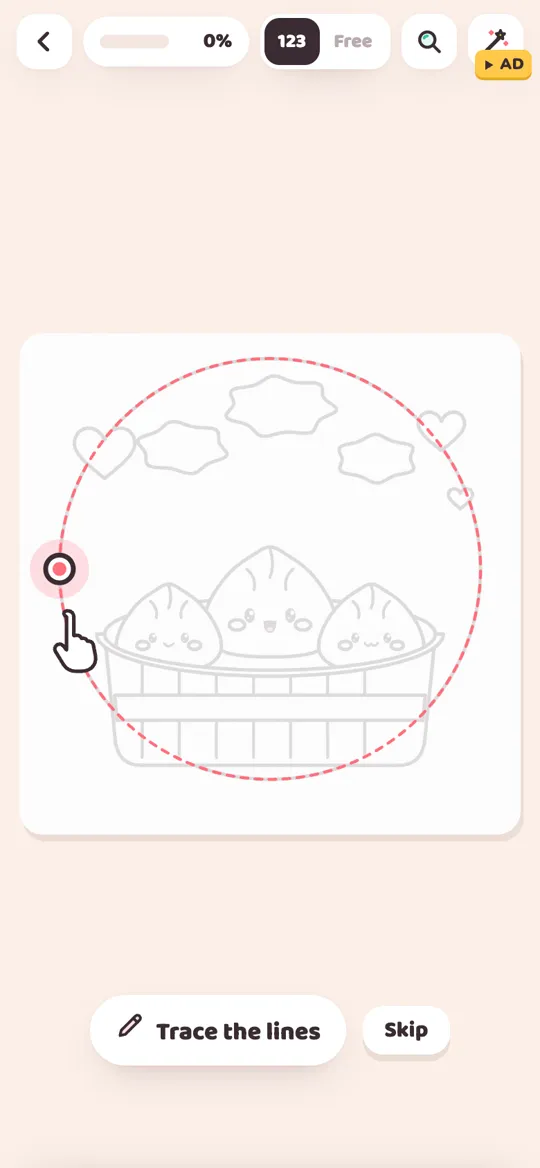
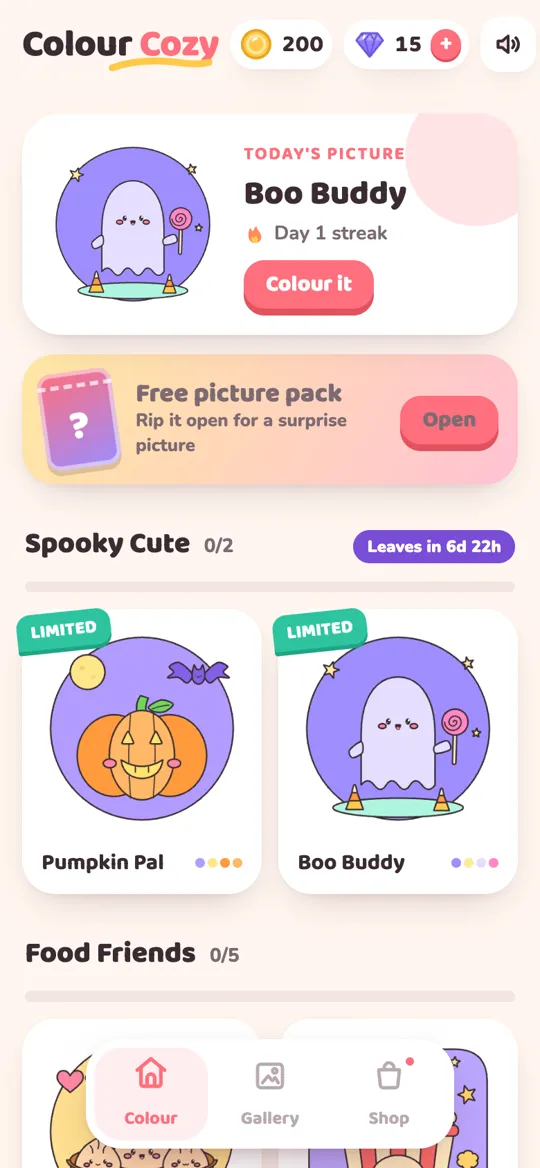
Colour Cozy is a calm coloring game for children and adults, coming soon to Google Play. Here is what happens, step by step, the first time someone opens it:
- The age screen comes first. The game shows a list of years and asks which year you were born. No ads load before this question is answered.
- The answer stays on the phone. There is no account and no sign-up. The birth year is saved on the device, like pictures, coins and unlocked colors.
- Under 13: child-directed ads only. Ads are requested as child-directed and under the age of consent, rated G, with no personalised advertising. Children do not see the ad consent form or the special offer pop-up.
- 13 and older: a consent choice where the law asks for one. In places such as the EEA and the UK, Google's consent form asks for a choice first. When that applies, an "Ad privacy choices" row in Settings lets you change it later.
- Grown-up checks stay on. For players who said they are under 13, purchases and outside links sit behind a small "Ask a grown-up" multiplication question.
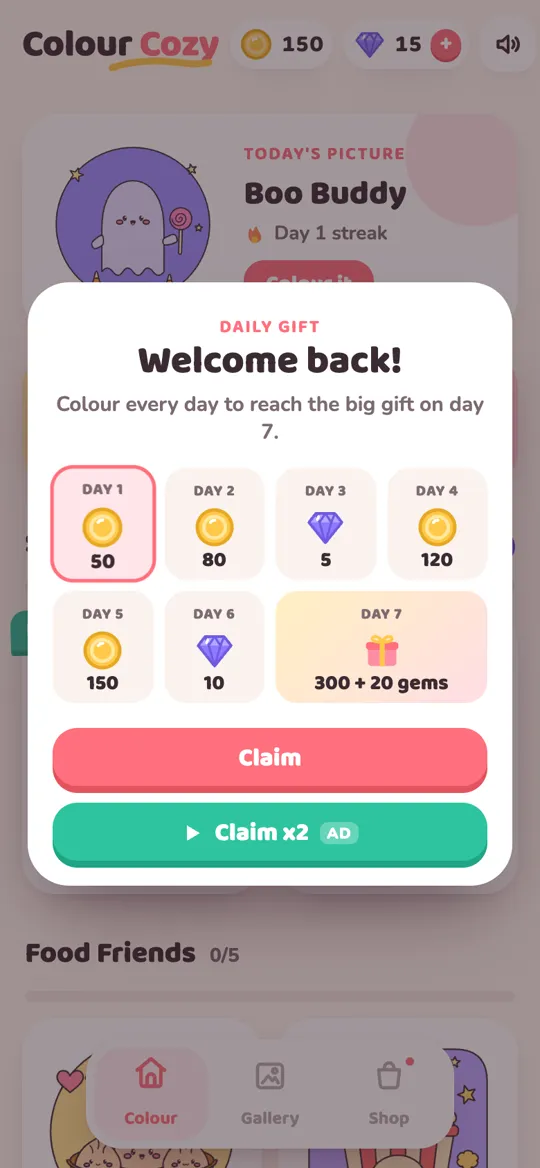
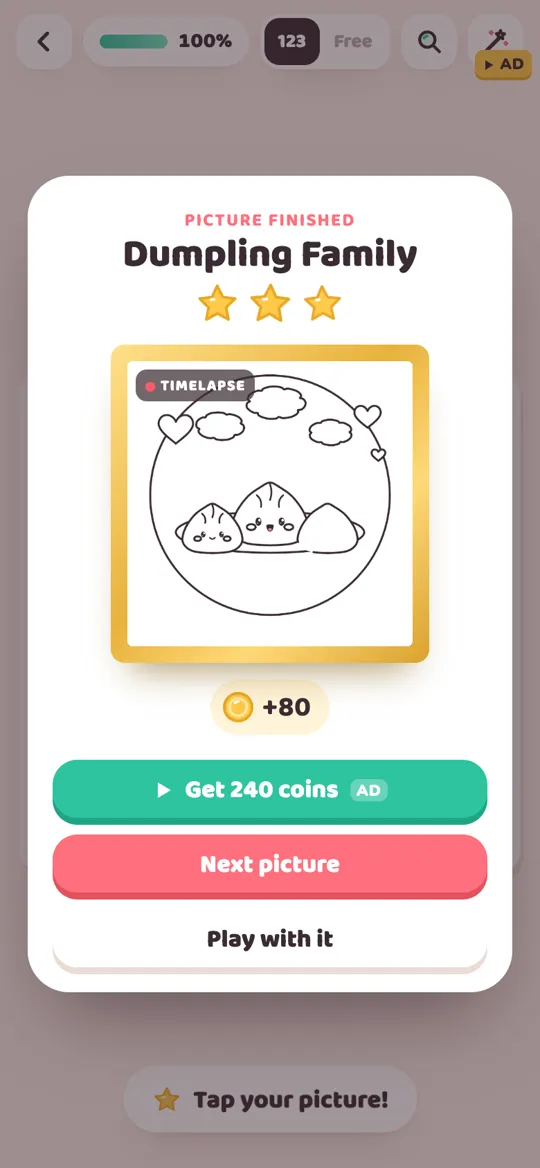
The ads themselves come in two kinds. Most are reward videos the player chooses to start, for example to double the daily gift or unlock a color pack. These buttons carry a small "AD" label, and a plain option without a video sits right next to them. There is also an occasional full-screen ad after a finished picture, never in the middle of coloring.
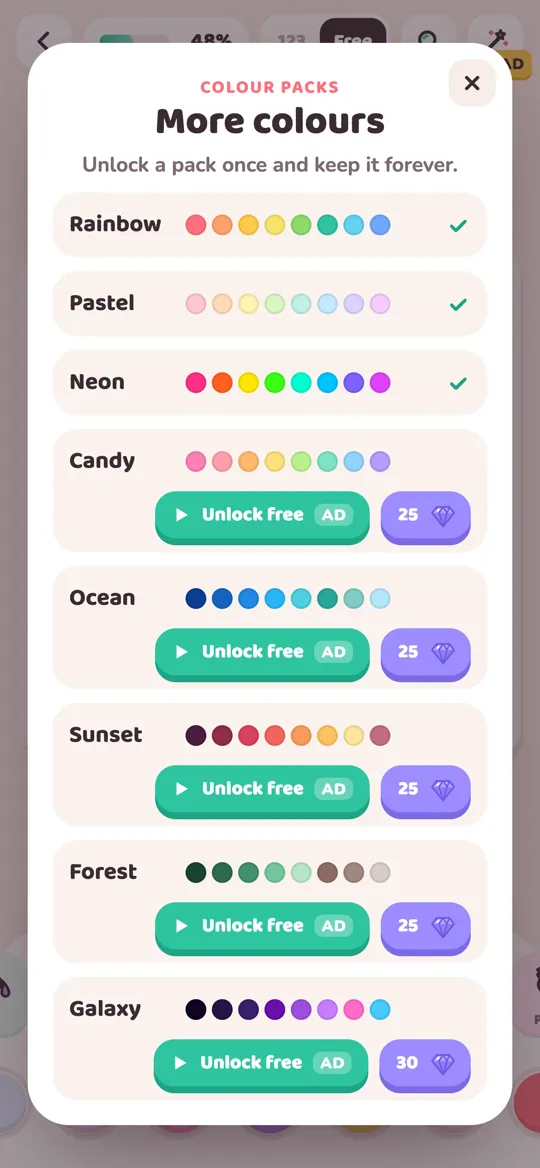
If you want the full picture on unlocking, our guide on how to unlock colour packs walks through both the video and the gem route.
What child-directed ads do not do
The flag is useful, but it is not magic. It is worth knowing its limits so you can fill the gaps yourself:
- It does not remove ads. Your child will still see ads. They are just chosen differently.
- It does not make every ad a good fit. A content ceiling filters out a lot, but an ad for another game can still be loud or pushy. Watching one or two with your child helps you judge.
- It depends on an honest answer. If a child picks an older birth year, the app treats them as older. Setting up the app together the first time avoids this.
- It does not cover how the app itself behaves. Timers, streak pressure or a shop button on every screen are app design choices, not ad settings. Our piece on games without timers for kids looks at that side.
Five checks you can do in any kids app
You do not need to read code to see how an app handles ads. These checks take a few minutes and work for most apps:
- Read the store labels. "Contains ads" and "In-app purchases" appear near the install button. Note both before you install.
- Watch the first launch. Does the app ask for an age before anything else? If it never asks and is not a kids-only app, every player is likely treated as an adult.
- Search the privacy policy. Look for "child-directed", "non-personalised" or "personalized ads", and check that it says what happens for players under 13.
- Play one full round yourself. Count where ads appear. Are they labelled? Can you skip the optional ones with one tap? Does anything interrupt the middle of an activity?
- Open Settings. Look for ad privacy choices, a way to delete data, and whether purchases ask for a grown-up.
Our parent checklist for coloring apps turns these into a longer list, including accounts, tools and a ten-minute test before you hand the tablet over.
Talking to your child about ads
Young children often cannot tell an ad from the game around it. A short, friendly chat helps more than any setting:
- Point at the "AD" label and explain that it means "someone is showing you this so you will try their thing."
- Agree that tapping inside an ad, or buying something, is a "ask me first" moment.
- Make the plain button the normal choice. Choosing the video now and then is fine. It should be a choice, not a habit.
A neutral age question, child-directed requests, clear labels and a grown-up check on purchases are the signs of an app that took ads seriously. You can read exactly how Colour Cozy handles this in its privacy policy.
FAQ
What does child-directed mean in an app?
It means the app tells the ad network that the player is a child. The network should then show only non-personalised, contextual ads and avoid building a profile of the player.
Are child-directed ads the same as no ads?
No. Your child still sees ads. The difference is how they are chosen: from the context of the app instead of from tracking, and often with a stricter content rating.
How does an app know my child's age?
It has to ask or assume. Kids-only apps treat everyone as a child. Mixed-audience apps usually show a neutral age screen on first launch and set ads from the answer.
What age gets child-directed ads?
In most apps it is players who say they are under 13, in line with rules such as COPPA in the US. In Colour Cozy, players who say they are under 13 only get child-directed, non-personalised ads.
Can I turn off personalised ads for myself as an adult?
Often yes. Where the law requires a choice, apps show a consent form. In Colour Cozy, the "Ad privacy choices" row in Settings lets you change that choice later when it applies.
Does Colour Cozy show ads in the middle of coloring?
No. Reward videos only play when a player taps a button marked AD, and the occasional full-screen ad comes after a finished picture, not during coloring.